译文
━ STEP 1|Choose a Word for the Title ━
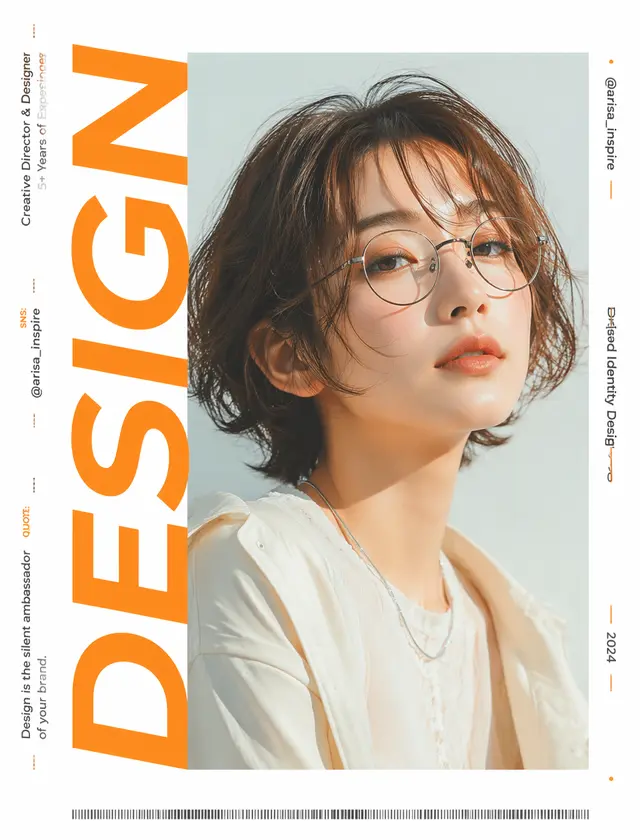
・Read the title, self-introduction, and field from the screenshot and select an English word symbolizing this person (e.g., related to design → DESIGN). Do not use the name. This word will be the main character.

━ STEP 2|Place the Word on a Pure White Background, Rotated 90 Degrees Counterclockwise ━
・Background is pure white
・Rotate the selected word counterclockwise by 90 degrees to make it horizontally inverted (text in a horizontal倾斜 state)
・Position this giant horizontally inverted text, starting from the left side of the screen, to fill the height of the screen in an ultra-large size

━ STEP 3|Create a "Text + Square" Clipping Mask ━
・This step does not use a photo. Only create a mask (template for clipping)
・Add a square with the same vertical width as the giant horizontally inverted text from STEP 2.
Overlap this square with the end of the giant horizontally inverted text and extend the square's horizontal width to the edge of the screen.
・After merging these two shapes, create a clipping mask.

━ STEP 4|Place the Character Image Over the Entire Screen and Clip with the Mask from STEP 3 ━
・Enlarge and crop the character image from the attachment to make the face occupy most of the screen and position it over the entire screen
・Clip the photo using the mask shape from STEP 3 (perform clipping). The photo is only visible within the mask, filled with a single uninterrupted photo

━ STEP 5|Configure Small Text in the Remaining Space ━
・On the image completed in STEP 4, translate and configure the information read from the screenshot into English
・Create white solid areas on the left and right sides of the STEP 4 image to configure the information read from the screenshot.
・The small text is also rotated counterclockwise (horizontally inverted) and flows vertically along the white space (do not place horizontally)
・Left: TITLE = Name/Role/Experience/Social Media, brief quote from introduction / Right: @Username/Project Name/Year
・Avoid overstacking and pay attention to balance during configuration

━ STEP 6|Add Finishing Elements ━
・Add a thin strip-like barcode-style graphic horizontally at the bottom. Decorate the remaining white space with minimal dots or lines

【Common Texture for All STEPS】
・Treat the character photo or avatar from the attachment as "inspiration for the character image." Do not directly copy or reproduce the face, but inherit the atmosphere, hairstyle, hair color, glasses or small items, clothing style, and softness of expression read from it
・If the attachment is an illustration or character avatar, also read the color application, hairstyle, glasses, and atmosphere, and convert them into a real-life model reflecting these features
・Avoid overly AI-like expressions, skin, hair, posture, and clothing texture, and create a natural look like a real advertisement shoot
・Use bright, high-key lighting with a sense of transparency (prohibit dim indoor and dull gray)
・Redesign the color scheme based on the screenshot source for an advertisement style, setting a focal color that attracts attention
・Avoid ordinary business attire and use a unique style that matches the world view
・Aspect ratio 4:5, high resolution, fashionable advertisement quality
 桃子AI画廊Tao Image Gallery